
The Leak in Your Pocket: Why Your Phone Needs Real Security (Not Just a Passcode)
Your phone knows more about you than your partner does.
Banking apps with saved credentials. Work email with client data. Text messages with 2FA codes. Photos with location metadata. Every WiFi network you've ever connected to. Your daily routes. Your contacts. Your calendar. Your entire digital life.
And it's protected by... what exactly? A six-digit PIN? Face ID?
That stops someone from using your phone if you lose it at a coffee shop. It doesn't stop the threats you'll never see coming.
The Security Double Standard We All Accept
You wouldn't use your laptop without antivirus software. You wouldn't connect to public WiFi without thinking twice. You wouldn't click random links on your desktop without at least some hesitation.
But your phone? The device that has your bank account, your email, your photos, your location history, your saved passwords, and access to your work systems? That device gets a passcode and... hope.
Why do we protect our laptops better than our phones when our phones hold our entire lives?
The uncomfortable truth: most people don't realize their phone needs the same level of protection as their computer. And by the time they find out, it's too late.
Your Phone Is Already Leaking (You Just Don't Know It Yet)
Right now, your phone might be:
Leaking your location to apps you forgot you installed three years ago
Connecting to WiFi networks that are actively harvesting your data
Running active sessions to your bank that could be hijacked
Storing credentials that malware can access
Syncing sensitive data to cloud services you don't remember authorizing
Carrying old backup data that contains passwords you changed months ago
And you have absolutely no idea.
Because unlike your laptop, which has antivirus, firewalls, and endpoint detection, your phone has... a passcode and a prayer.
Real Breaches Happening Right Now
This isn't theoretical. In just the past few weeks:
Dutch telecom giant Odido confirmed a breach affecting 6.2 million customers (February 12, 2026). Hackers accessed their customer contact system and downloaded names, phone numbers, addresses, dates of birth, bank account numbers, and government ID details. That's a third of the Netherlands' population.
AT&T breach data resurfaced with enhanced risk for customers (February 2, 2026). Old breach data is being merged, cleaned, and enhanced with new information, creating detailed profiles criminals can use for SIM swaps, account takeovers, and identity theft. The data includes names, addresses, phone numbers, email, partial Social Security numbers, and dates of birth in a single searchable database.
Match Group dating apps (Hinge, Match, OkCupid) were hit by social engineering attacks that compromised over 10 million records (January 28, 2026), including user IDs, IP addresses, transaction details, and internal corporate documents.
The pattern? Phone companies, mobile apps, and services connected to your phone are being targeted constantly. When they get breached, your phone becomes the attack vector.
The Threats Your Passcode Can't Stop
Your phone's built-in security (passcode, Face ID, fingerprint) protects against one thing: someone physically picking up your phone and trying to use it.
It doesn't protect against:
1. Malware From Apps You Already Installed
You downloaded an app six months ago. It seemed legitimate. It requested permissions that seemed reasonable at the time. Now it's running in the background, harvesting your data, tracking your location, and accessing your contacts.
Your passcode doesn't stop this. The app is already inside your security perimeter.
2. Man-in-the-Middle Attacks on Public WiFi
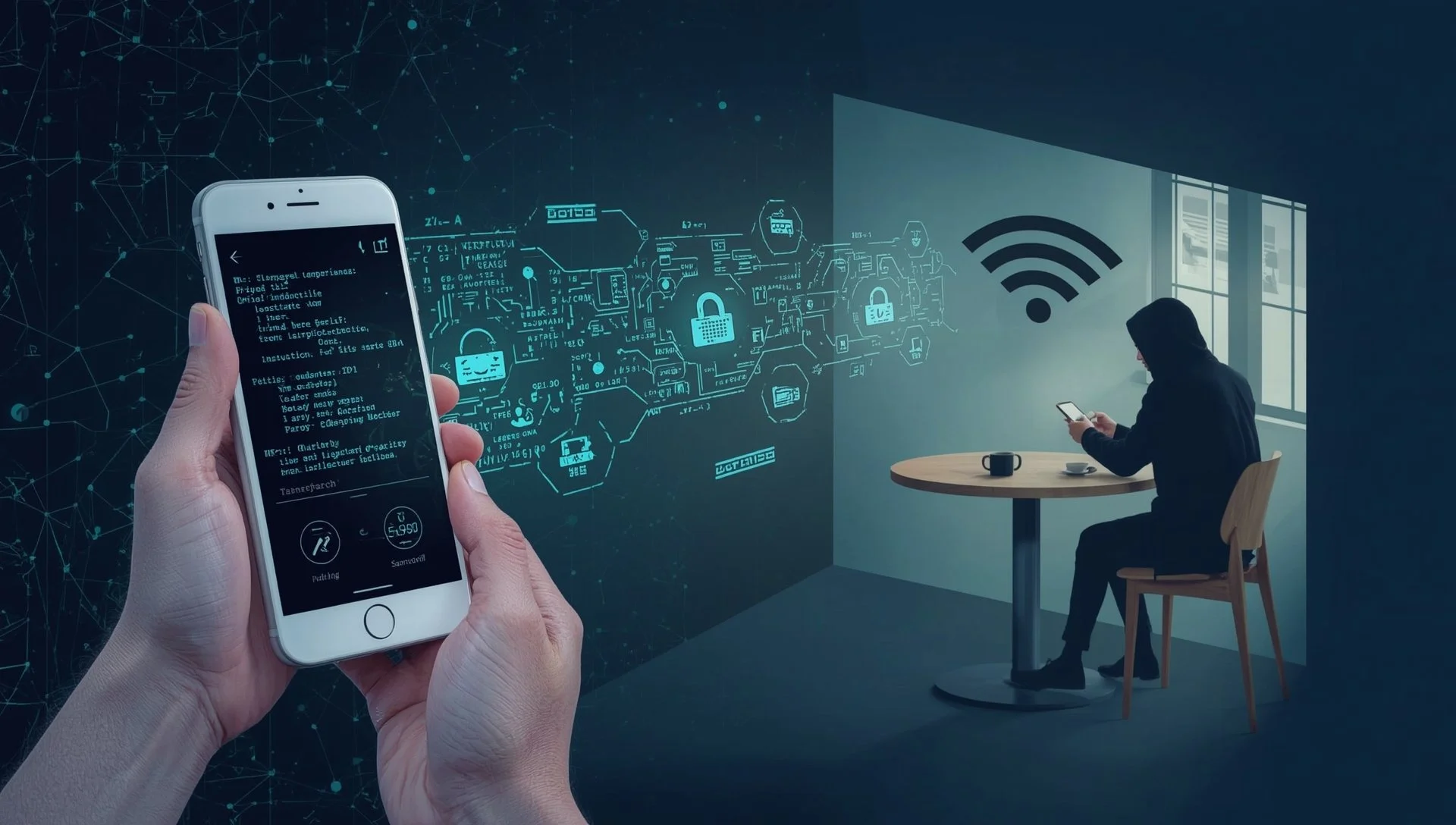
You connect to the coffee shop WiFi. Or the airport. Or the hotel. A malicious actor on the same network intercepts the traffic between your phone and your bank's server.
They capture your session cookies. Now they can impersonate you without needing your password.
Your passcode didn't protect this session. It was never designed to.
3. Phishing Sites Designed for Mobile Browsers
You receive a text message that looks like it's from your bank. You click the link. The fake site looks identical to the real one on your small phone screen.
You enter your credentials. The attackers now have them.
Desktop browsers have better phishing detection. Mobile browsers? Far less sophisticated.
4. Session Hijacking While You're Logged In
You're logged into your email. Your banking app. Your work VPN. These sessions can be stolen and replayed from anywhere in the world.
The attacker doesn't need your password. They have an active, authenticated session.
Your passcode is irrelevant once you're already logged in.
5. Network-Based Exploits You'll Never See
Zero-day vulnerabilities in mobile operating systems. Bluetooth exploits. NFC attacks. SS7 protocol weaknesses that allow SIM hijacking.
These attacks happen at the network level, completely bypassing your device security.
“But what about cellular data? Isn't that safer?"
Yes, cellular data is more secure than public WiFi for transmission. Your connection is encrypted between your phone and the cell tower, and you're not sharing a network with strangers.
However, cellular doesn't make you invulnerable:
While cellular protects the network transmission, it doesn't protect against:
Malware already installed on your phone
Phishing sites (works the same on cellular or WiFi)
Compromised apps harvesting credentials
SIM swapping attacks that hijack your phone number
Session hijacking after you're logged in
Banking on cellular is generally safe - legitimate banking apps use end-to-end encryption regardless of which network you're using.
The real threat isn't the network type; it's what's already on your device
The Backup Problem Nobody Talks About
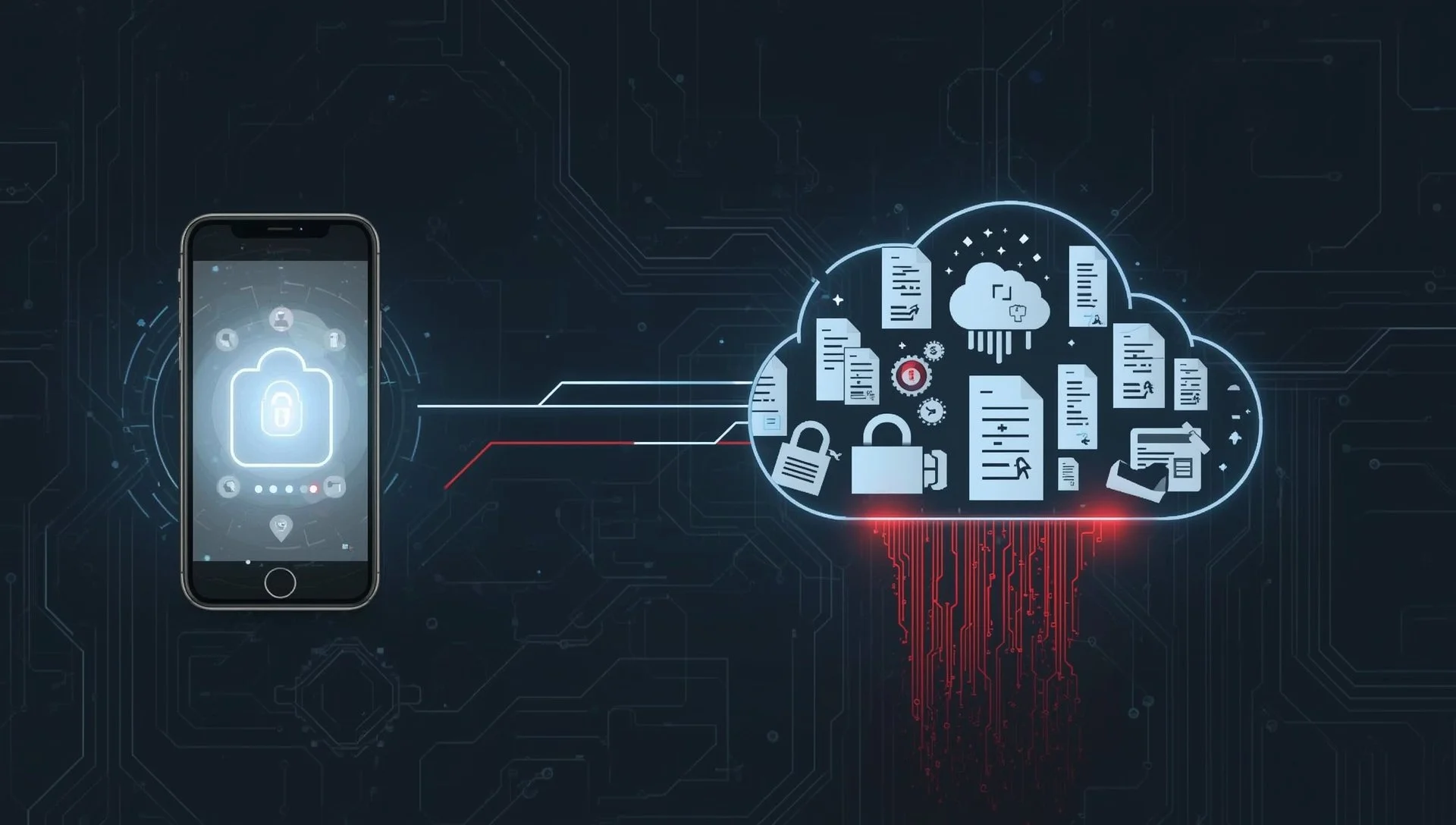
Here's something most people don't realize: even if you upgrade your phone and change all your passwords, your old data might still be exposed.
Cloud backups (iCloud, Google Drive) store everything:
Old app data with saved credentials
Previous versions of apps that had vulnerabilities
Cached data from services you no longer use
Photos with embedded location data
Old messages containing 2FA codes
Saved WiFi network passwords
When you restore from backup, you're potentially restoring old security vulnerabilities alongside your photos and contacts.
Worse: if your backup account gets compromised, attackers get access to years of your digital history, even data from phones you no longer own.
According to recent cloud security research, shadow data in forgotten cloud storage buckets and obsolete database snapshots operates outside routine security monitoring, creating long-term exposure that persists even after you think you've secured your current device.
What You Can Do Right Now (Free Steps)
You don't need to buy anything to dramatically improve your phone's security. Here are immediate actions you can take today:
1. Audit Your App Permissions
iOS: Settings → Privacy & Security → scroll through each permission type (Location, Camera, Contacts, Photos)
Android: Settings → Privacy → Permission Manager
What to look for:
Apps you don't use anymore (delete them)
Apps with "Always" location access that don't need it (change to "While Using")
Apps with access to contacts, camera, or microphone that you don't remember authorizing
Games or utility apps with access to photos or messages
Rule of thumb: If you haven't used an app in 3 months, delete it. If an app asks for permissions it doesn't need, don't install it.
2. Enable Automatic OS Updates
iOS: Settings → General → Software Update → Automatic Updates (turn on)
Android: Settings → System → System Update → Auto-download over WiFi (turn on)
Why this matters: Most mobile exploits target known vulnerabilities that have already been patched. Keeping your OS updated closes these attack vectors.
The recent Ivanti endpoint manager vulnerabilities (CVE-2026-1281 and CVE-2026-1340) exploited unpatched mobile device management software, allowing remote code execution. Updates matter.
3. Review What's Syncing to the Cloud
iOS: Settings → [Your Name] → iCloud → See All
Android: Settings → Google → Backup
What to disable:
Apps you don't use
Sensitive data that doesn't need cloud backup (banking apps, password managers that have their own secure sync)
Old photos with location data you don't need backed up
Pro tip: Don't automatically sync everything. Be selective about what goes to the cloud.
4. Turn Off WiFi Auto-Connect
iOS: Settings → Wi-Fi → Ask to Join Networks (turn on) / Auto-Join Hotspot (turn off)
Android: Settings → Network & Internet → WiFi → WiFi preferences → Turn on WiFi automatically (turn off)
Why: Your phone remembers every WiFi network you've ever connected to. Attackers can create fake networks with the same name, and your phone will automatically connect, handing over your data.
5. Use Strong, Unique Passwords (And a Password Manager)
If you're using the same password across multiple services, a breach at one service compromises all of them.
Free password managers:
Bitwarden (open source, excellent free tier)
Apple Keychain (iOS/Mac only, built-in)
Google Password Manager (Android, built-in)
The rule: Every account gets a unique, randomly generated password. Your password manager remembers them so you don't have to.
6. Enable Two-Factor Authentication (2FA) Everywhere
Especially for:
Email accounts (if someone gets your email, they can reset everything else)
Banking and financial accounts
Cloud storage (iCloud, Google Drive, Dropbox)
Social media (these get hijacked constantly)
Best 2FA methods (in order):
Hardware security keys (YubiKey, Google Titan)
Authenticator apps (Google Authenticator, Authy)
SMS codes (better than nothing, but vulnerable to SIM swaps)
Never use: Security questions or email-based 2FA for critical accounts.
7. Review Your Connected Devices and Sessions
Google: myaccount.google.com → Security → Your Devices
Apple: Settings → [Your Name] → Devices
Microsoft/Outlook: account.microsoft.com → Security → Sign-in activity
What to look for:
Devices you don't recognize (remove them immediately)
Login locations that don't make sense
Old devices you no longer own
Do this monthly. Attackers often gain access quietly and don't immediately use it.
8. Disable Lock Screen Notifications for Sensitive Apps
If someone finds your phone, they shouldn't be able to read your banking notifications, 2FA codes, or work emails from the lock screen.
iOS: Settings → Notifications → [App Name] → Show Previews (set to "When Unlocked")
Android: Settings → Notifications → [App Name] → Lock screen (set to "Don't show notifications at all")
Especially important for: Banking apps, email, messaging apps, authenticator apps.
9. Set Up Find My Device (And Test It)
iOS: Settings → [Your Name] → Find My → Find My iPhone (turn on)
Android: Settings → Security → Find My Device (turn on)
Critical: Know how to remotely wipe your phone BEFORE you lose it. Test that you can locate it from another device.
If your phone is lost or stolen, you need to be able to wipe it remotely before someone bypasses your passcode or accesses your active sessions.
10. Stop Clicking Links in Text Messages
This is the simplest and most violated security rule.
If you receive a text message with a link:
Don't click it
Open the official app or website independently
Verify if the message is legitimate
Even if it looks like it's from:
Your bank
A delivery service
Your phone carrier
A government agency
Attackers know you trust texts from your phone number. They spoof them constantly.
A Word About "Free Antivirus" Apps: Buyer Beware
You've probably seen ads for free mobile antivirus apps. Before you download one, understand what you're actually getting.
On iOS: Apple's sandboxing restrictions mean third-party antivirus apps can't actually scan your device for malware the way desktop antivirus does. They're largely security theater with VPN upsells.
On Android: Google Play Protect is already built into your phone and provides basic scanning. Most "free" antivirus apps:
Harvest your data to sell to advertisers (check the privacy policy)
Bombard you with upgrade notifications
Require in-app purchases for any real protection
Slow down your phone with constant background scanning
The uncomfortable truth: Many free mobile antivirus apps create more privacy risks than they solve. They request extensive permissions, track your behavior, and monetize your data.
If you're serious about mobile security, skip the free antivirus apps and invest in legitimate Mobile Threat Defense from reputable vendors. The free tier won't protect you, and the data collection isn't worth it.
Bottom line: Don't install "free antivirus" apps thinking they're protected. Focus on the actionable steps above instead.
When Free Isn't Enough: The Gap Between Consumer Security and Real Protection
Everything above will dramatically improve your security. But it won't close all the gaps.
Free security measures protect against:
Casual attackers
Opportunistic malware
Basic phishing attempts
Lost or stolen devices
They don't protect against:
Zero-day exploits targeting your phone's OS
Sophisticated network-based attacks
Advanced persistent threats
Credential theft from compromised apps
Man-in-the-middle attacks on public WiFi
Session hijacking in real-time
This is where Mobile Threat Defense (MTD) comes in.
MTD solutions provide the same level of protection for your phone that antivirus and endpoint detection give your laptop:
Real-time threat detection that catches what built-in security misses
Network threat prevention that blocks man-in-the-middle attacks
App risk analysis before malware gets installed
Web filtering that stops mobile phishing sites
Monitoring for compromised credentials and session theft
The difference between free security and MTD:
Free security is like locking your front door. MTD is like having a security system with cameras, motion sensors, and 24/7 monitoring.
Both are important. Neither alone is sufficient.
Real Mobile Protection: What Actually Works
If you're serious about protecting your phone the way you protect your laptop, you need Mobile Threat Defense (MTD) from a legitimate vendor.
THINKFLEX deploys Bitdefender GravityZone Mobile Security - enterprise-grade protection that scales from a single phone to thousands of devices.
What Bitdefender Mobile Security Actually Does (vs. Free Apps)
Real-time malware detection - Catches threats before they execute, not after damage is done
Network attack prevention - Blocks man-in-the-middle attacks on public WiFi, SSL stripping, and rogue access points
App risk analysis - Evaluates app permissions, behavior, and reputation before installation (stops malicious apps at the door)
Web threat filtering - Identifies and blocks mobile phishing sites and malicious links in real-time
Privacy protection - Monitors which apps are accessing your data, location, camera, and microphone
Anti-theft features - Remote locate, lock, and wipe capabilities if your device is lost or stolen
VPN included - Encrypts your connection on public WiFi (actual VPN, not just marketing)
The Difference Between Consumer Apps and Enterprise-Grade Protection
Free "antivirus" apps:
Limited scanning capabilities (especially on iOS)
Data harvesting for advertising
Constant upgrade nag screens
Minimal actual protection
Bitdefender GravityZone Mobile:
Enterprise-grade threat detection engine
No data harvesting or ad tracking
Unified management across all devices
Actually stops attacks before they succeed
Same platform whether you have 1 device or 1,000
Scalable Protection: From One Phone to Your Entire Organization
The beauty of Bitdefender GravityZone? It scales to fit your needs.
Protecting yourself: Single device, full protection, simple setup
Protecting your family: Manage all family phones and tablets from one dashboard
Protecting your small business: Secure employee devices without enterprise complexity
Protecting your school or organization: Centralized management for hundreds or thousands of devices
Same platform. Same protection. Scales from 1 to 1,000+ devices.
Who Should Use Mobile Threat Defense?
You need MTD if you:
Access work email or business systems from your phone
Use banking or financial apps regularly
Store sensitive photos or documents on your device
Connect to public WiFi at coffee shops, airports, hotels
Have kids with smartphones (protect the whole family)
Run a small business where employees use personal phones
Manage IT for a school dealing with student BYOD
Travel internationally
Want the same protection on your phone that you have on your computer
One Solution, Any Scale
Whether you're protecting:
Your personal iPhone
Your family's devices
Your team's phones
Your school's BYOD program
Your enterprise mobile fleet
Same security. Same management platform. Scales effortlessly.
The Bottom Line: Your Phone Deserves Real Protection
The gap between how we use our phones and how we protect them is getting people compromised every single day.
Your phone isn't just a phone anymore. It's your bank, your office, your photo album, your communication hub, and your gateway to everything that matters.
You wouldn't leave your laptop unprotected. Why is your phone different?
The threats are real. The breaches are happening now. And a passcode isn't enough.
Start with the free steps above. They'll dramatically improve your security posture. But understand their limitations.
Mobile Threat Defense isn't enterprise-only anymore. It's available for individuals, families, and small businesses who want the same level of protection on their phones that they already have on their computers.
Because the leak in your pocket isn't going to fix itself.
THINKFLEX provides Mobile Threat Defense solutions for individuals, families, schools, and businesses. Protect your phone the same way you protect your computer.